How Can I Monitor My Security Cameras Remotely? (Setup Guide)
By Marlo Strydom · Updated
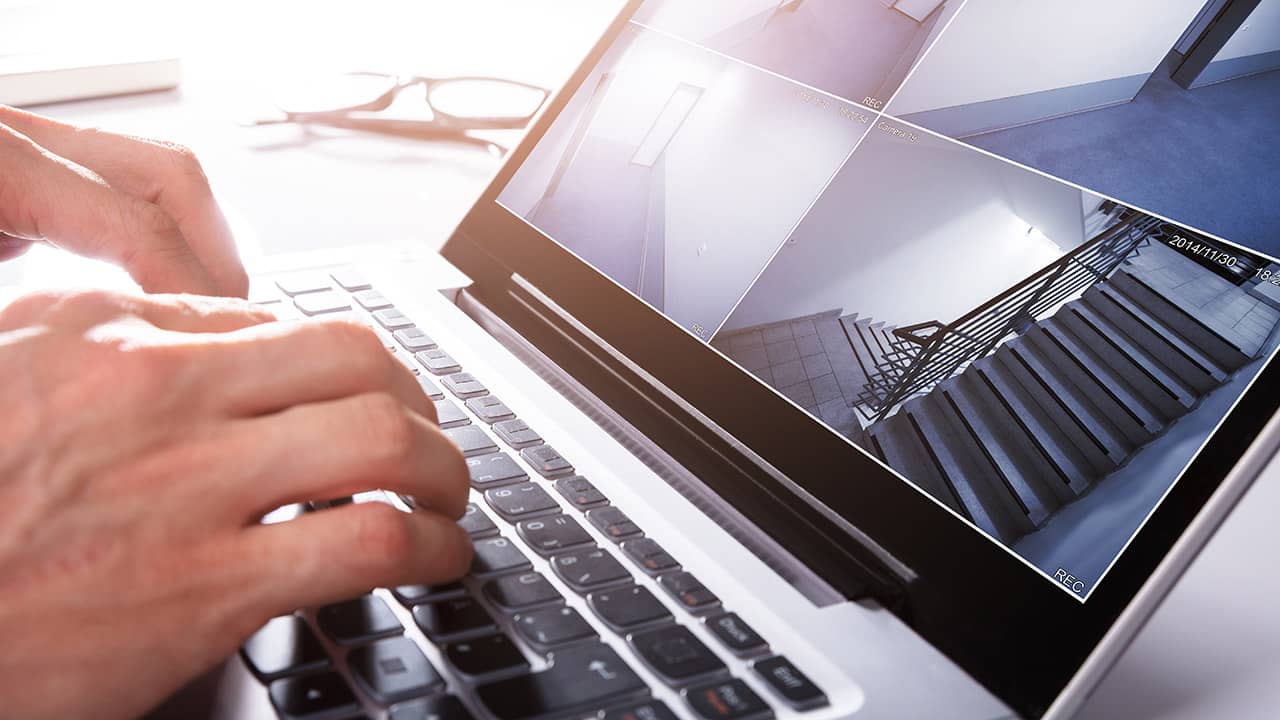
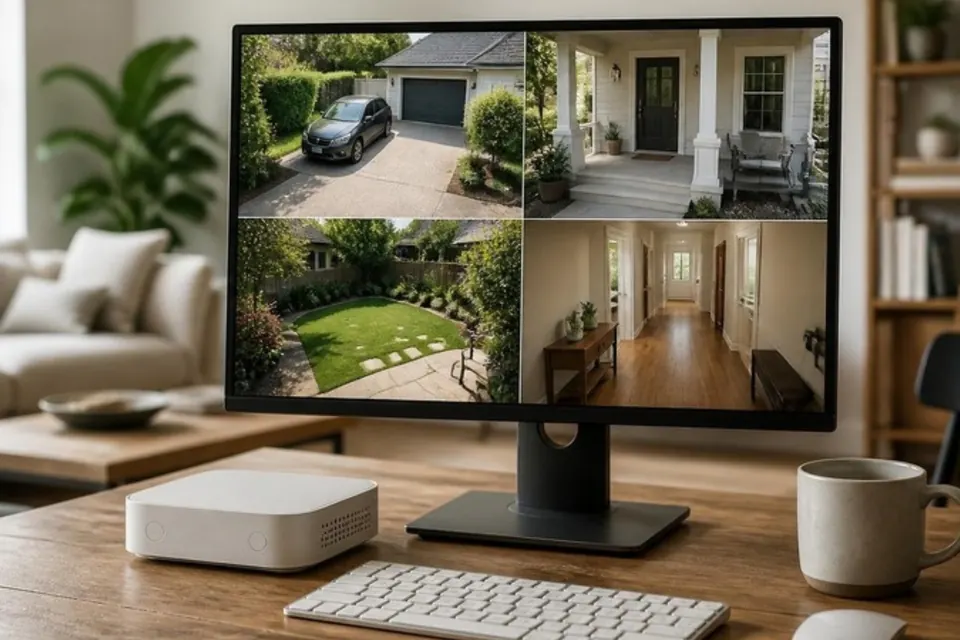
A security camera earns its keep when you're not home: at work, on a trip, or stuck in traffic when a package lands on the porch. Most systems can stream straight to your phone. The trick is choosing a way in that doesn't also let strangers in.
Secure Remote Camera Viewing Options
- Manufacturer app or portal: The easiest choice, as long as the maker still supports your camera and offers a secure login.
- VPN to your home network: Best for a DVR or NVR (a box that records your cameras) when your router can run its own VPN server.
- Port forwarding: Avoid it unless the maker requires it. It opens the recorder to the whole internet, so it needs constant care.
CISA, the U.S. cybersecurity agency, advises keeping devices off the open internet when you can. Its internet exposure guidance also recommends a VPN and multifactor authentication (a password plus a one-time code).
Different Ways to View Your Cameras Remotely
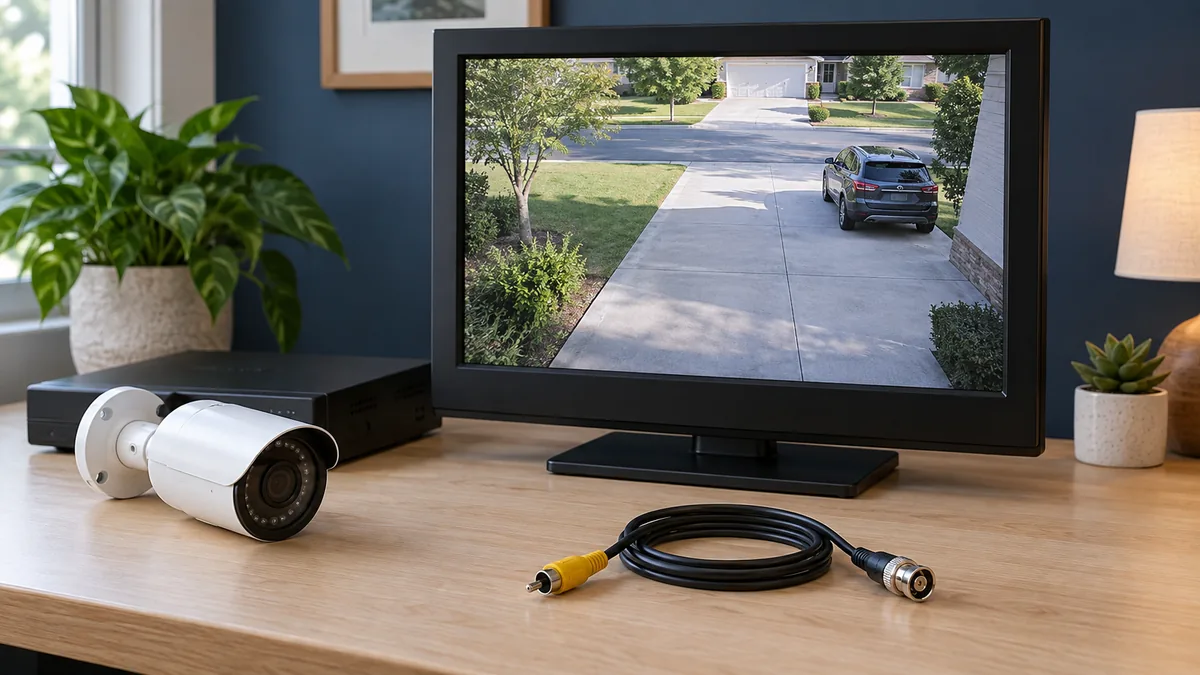
The right route depends on your system. Subscription cameras like Ring or Arlo work through the maker's app and cloud account. Standalone CCTV systems, like Hikvision or Dahua, usually record to a DVR or NVR in your home.
1. Mobile Apps (P2P / Cloud)
Best for: a camera with a supported manufacturer app.
The app links your phone to the camera through the maker's online service (often called P2P, short for peer-to-peer). Some networks or unsupported devices can still block remote viewing.
2. Supported Web Portals
Best for: watching from a computer without installing a desktop app.
Some makers offer a secure website where you sign in and watch live video. To reach your recorder's own web page instead, use the VPN method below.
3. Cloud Storage Portals
Best for: keeping clips safe as evidence.
A cloud recording plan saves clips on the maker's servers for a set number of days.
Check that the plan includes the live view, clip history, downloads and account sharing you need. Count the monthly fee when you compare systems.
Method A: Use the Manufacturer's App
Before you start, check that the maker still puts out security updates for your camera or recorder.
App Setup Steps
- Connect the camera or recorder to the router as its manual directs.
- Install the official app named in the manual.
- Create a unique password and turn on two-step login (multifactor authentication) if it's offered.
- Add the device with the QR code, device ID or account link the app asks for.
- Turn off Wi-Fi on your phone and test live view on cellular data. This proves it works away from home.
Method B: Use a VPN for a Local Recorder
A VPN back to your home network lets your phone reach the recorder as if you were standing in the house. The paid VPN apps sold for private browsing don't do this.
Instead, use a VPN server built into your router, or another trusted private-access tool. TP-Link's router OpenVPN guide shows how this works.
Like any login, the VPN needs a strong password and regular updates. Never install unknown VPN software on the recorder.
Once your phone is on the VPN, open the recorder maker's app and add the recorder by its local address. Our guide to viewing CCTV on your home network shows how to find it.
Internet Speed Requirements
When you watch from away, your home internet has to upload the video to you. Run a speed test at home and check the upload number, ideally while others are using the connection.
Use the Stream Bitrate
Resolution alone doesn't tell you how much upload speed you need. Frame rate, compression and bitrate (how much data the video sends each second) all matter. Reolink's stream settings guide notes that a higher bitrate looks better but uses more bandwidth.
Check the bitrate of the recorder's sub-stream, a lighter stream often used for remote viewing, and leave room for other home traffic. Two cameras at the same bitrate use about twice as much as one.
If the video is choppy, set live view to a lower option such as Sub-stream or Fluent. Leave the recording quality alone, and check that saved video still shows the detail you need.
A black screen can also mean a login, codec (video format) or connection problem.
Secure the Camera Account and Recorder
Remote access works both ways. If you can see inside your home from anywhere, so can anyone who gets your password.
Essential Security Rules
Change default passwords: Replace the factory login with a long, unique password before you turn on remote access.
Update firmware: Makers fix security holes through updates. Install updates for the camera, recorder, router and app, or turn on automatic updates.
Use HTTPS: If you sign in through a web browser, check that the address starts with https, which means the connection is encrypted. The FTC's home camera security tips say to check again after you log in.