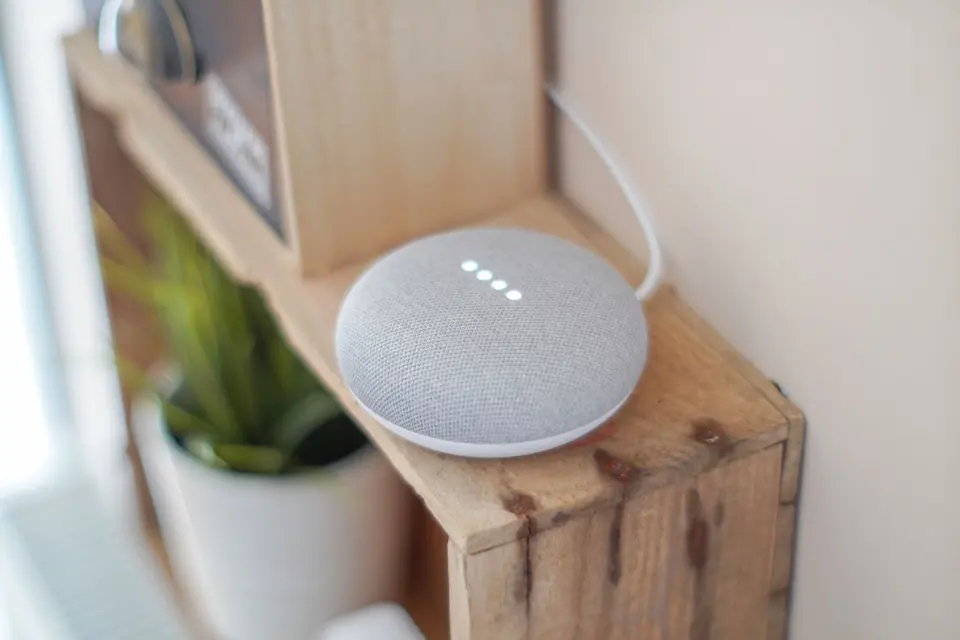
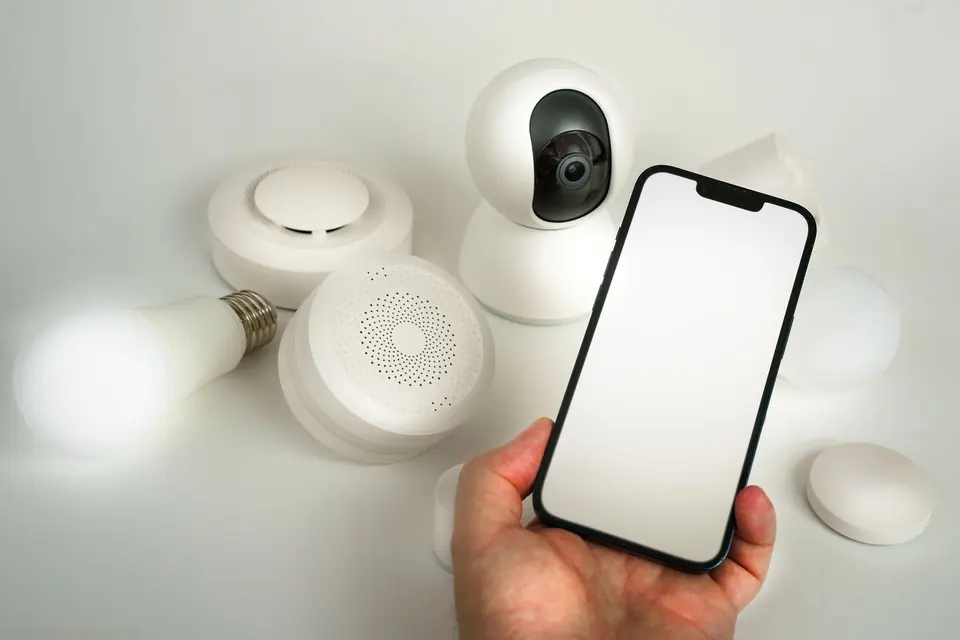
Will Alexa and Google Home Work Together? (Hybrid Setup Guide)
By Marlo Strydom · Updated
Yes, with one catch. Alexa and Google Home can share a house and control many of the same lights, plugs, switches, and thermostats. They just don't merge into one system, so each keeps its own routines, announcements, and settings.
How a Mixed Alexa and Google Home Setup Works
There are two ways to put one device on both assistants. You can link the maker's account to each app, or share a Matter device from one app to the other with a pairing code.
Matter's multi-admin feature is what lets one device join more than one platform. The Connectivity Standards Alliance explains how Matter multi-admin shares devices across platforms.
How It Actually Works
People usually mean one of two things. Can an Echo and a Nest speaker control each other? Or can both control the same smart device?
The answer to the first is no. An Echo can't give orders to a Nest speaker, or the other way around. The answer to the second is yes, as long as the device officially supports both services.
Connect Through the Manufacturer's Account
Use this method when the device maker supports both Alexa and Google account linking. For a Matter device already set up in one platform, use the sharing method below instead.
- Set up the device: Add it in the manufacturer's app and test it there.
- Link Alexa: Use the maker's Alexa setup instructions to enable its skill or account connection.
- Link Google Home: Add the maker's Works with Google Home service and sign in with the same maker account.
- Check rooms and names: Give the shared device a clear name in each app, such as "Living Room Lamp."
- Test both: Ask each assistant to control it before creating routines.
Some makers' apps have a button that links straight to Alexa or Google Home. Use it when you can, and check which devices and features the link covers.
Pros and Cons of a Hybrid Home
Two assistants add choice, but they also add setup work.
The Benefits
- Household choice: Family members can use the assistant they prefer.
- Broader device choice: You can use some devices with Alexa and others with Google, even when they don't all support both.
The Drawbacks
- No Multi-Room Sync: You cannot create a speaker group that combines Echo and Nest speakers for whole-home audio.
- Two places to check: Device names and room assignments may need attention in both apps, even when account linking discovers the device automatically.
- Confusion: You have to remember which routines are set up on which platform.
How Matter Helps Both Platforms
Each platform still needs its own Matter controller, such as a compatible Echo or Nest speaker or hub. Matter can also run supported features over your home network instead of the internet. Our guide to bulb schedules during an outage shows what local control can and can't do.
Features can still differ between the maker's app, Alexa, and Google Home. Check which ones each app supports before you rely on them.
Share a Google Home Matter Device with Alexa
Make sure the device already works in Google Home and that both apps are on your phone. Thread devices also need a compatible Thread network (a low-power wireless network some smart devices use).
- In Google Home, open Home > All devices, then touch and hold the device tile.
- Open its settings and choose Linked Matter apps & services, then Link apps & services.
- Choose Alexa if offered. Otherwise select the option to generate a temporary pairing code.
- In Alexa, open Devices, choose the plus button, then Add Device and Matter.
- Choose the numeric-code option, enter the new code, and finish the prompts. Test control from both apps.
These steps follow Google's Matter sharing instructions and Amazon's guide to adding another platform's Matter device.
Share an Alexa Matter Device with Google Home
- In Alexa, open Devices and select the working Matter device.
- Choose Other Assistants and Apps, then Add another.
- Copy the new pairing code. Amazon says this code lasts 15 minutes.
- In Google Home, choose the add-device option for a Matter-enabled device. Select setup without a QR code and enter the new code.
- Finish setup in the correct home and room, then test the device in each app.
Amazon covers this in its Matter sharing guide for other assistants. If the code expires, make a new one in the app that already controls the device. You don't need to factory reset a working device just to share it.
Avoid Duplicate Devices and Opposing Routines
A device linked through both the maker's account and Matter may show up twice. Test each copy and check the maker's instructions before you remove one. Note any routines that use a copy before you change it.
Give each schedule one owner. For example, keep the lamp's bedtime schedule in Alexa or in Google Home, and use either assistant to switch it by voice. Two opposing schedules can undo each other even when sharing works perfectly.
When a Mixed Setup Makes Sense
If everyone at home is happy with one assistant, sticking with it is simpler. Before you buy a device for a mixed home, check that the box or the maker's site lists both Alexa and Google Home, or Matter.